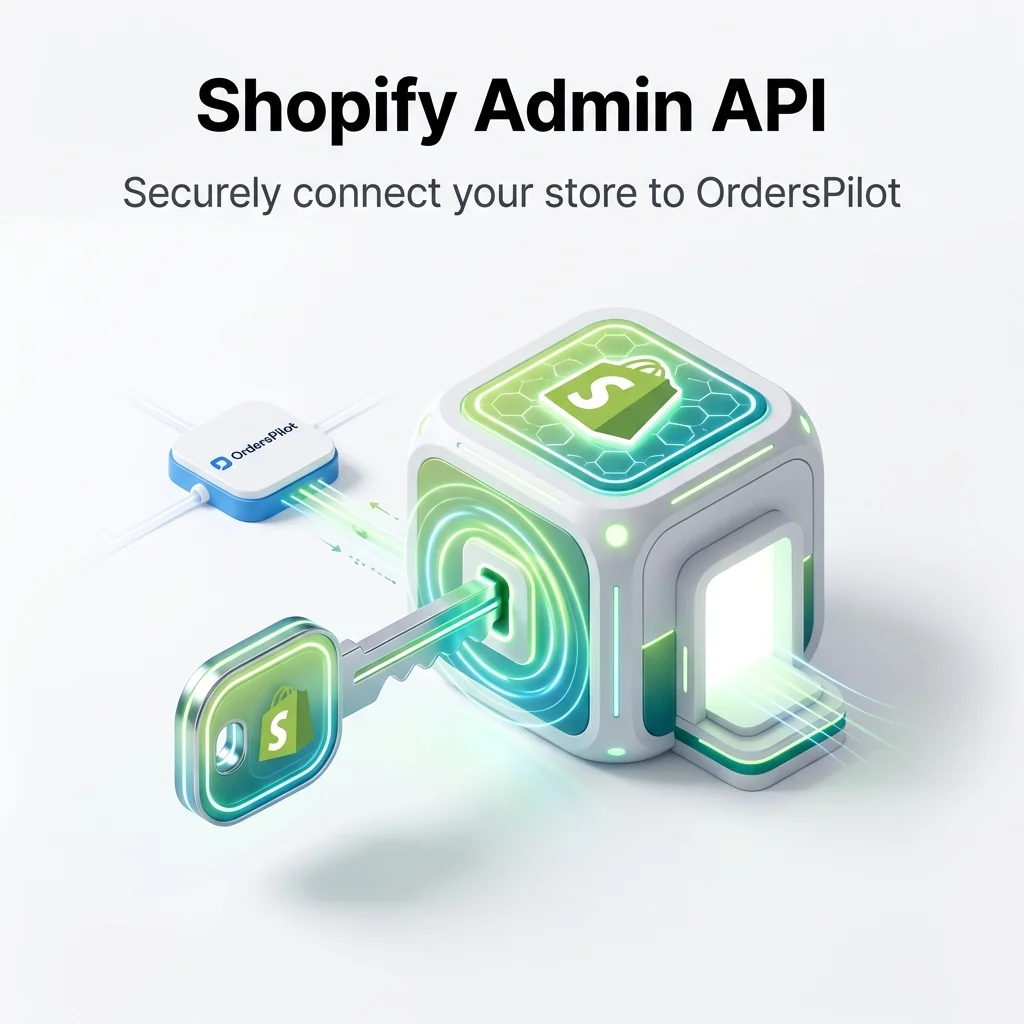
If you're building a SaaS product like OrdersPilot or integrating deeply with Shopify stores, creating a custom app is the most reliable and scalable way to access store data securely.
Why Use a Shopify Custom App?
Public apps are great for distribution, but custom apps are built specifically for a single store. They provide direct, secure access to Shopify's Admin APIs without going through the public app approval process.
For backend-heavy SaaS tools like OrdersPilot, custom apps allow you to:
- ⚡ Access orders, inventory, and fulfillment data in real-time
- ⚙️ Automate workflows like stock syncing and shipment creation
- 🔐 Maintain a secure, token-based connection to each store
Step 1: Enable Custom App Development
Before creating a custom app, Shopify requires you to enable custom app development:
- Go to Shopify Admin → Settings
- Click on Apps and sales channels
- Select Develop apps
- Click Allow custom app development and confirm
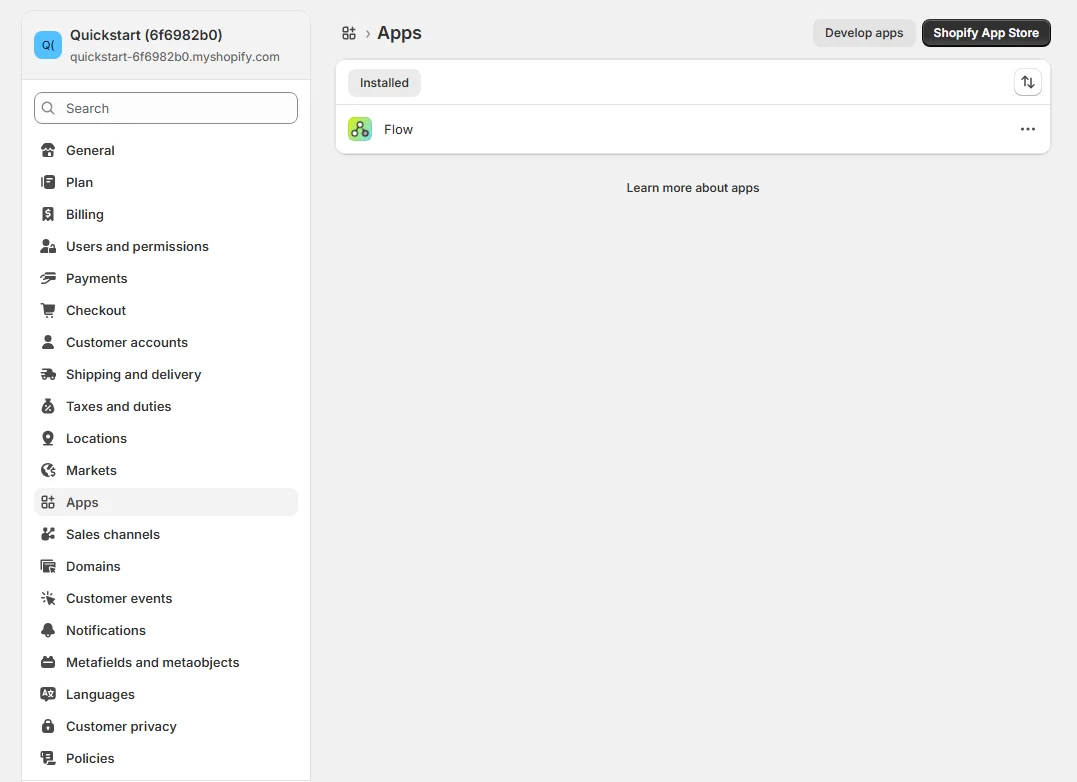 Apps and sales channels
Step 2: Create a New Custom App
- Click Create an app
- Enter app name (e.g., "OrdersPilot Integration")
- Assign a developer (your email)
- Click Create app
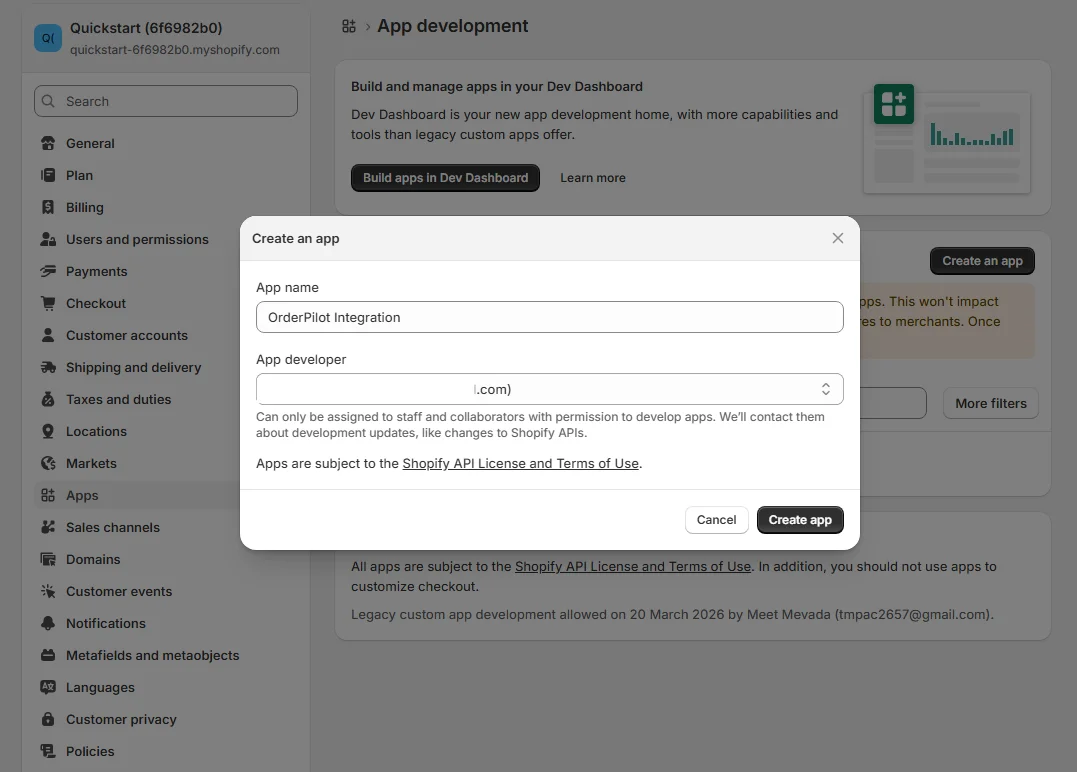 Create an app
Step 3: Configure Admin API Permissions
Note
This is the most critical step. Your app permissions define what data you can access.
- read_orders, write_orders
- read_inventory, write_inventory
- read_products
- read_fulfillments, write_fulfillments
Steps:
- Go to Configuration → Admin API integration
- Select required scopes
- Click Save
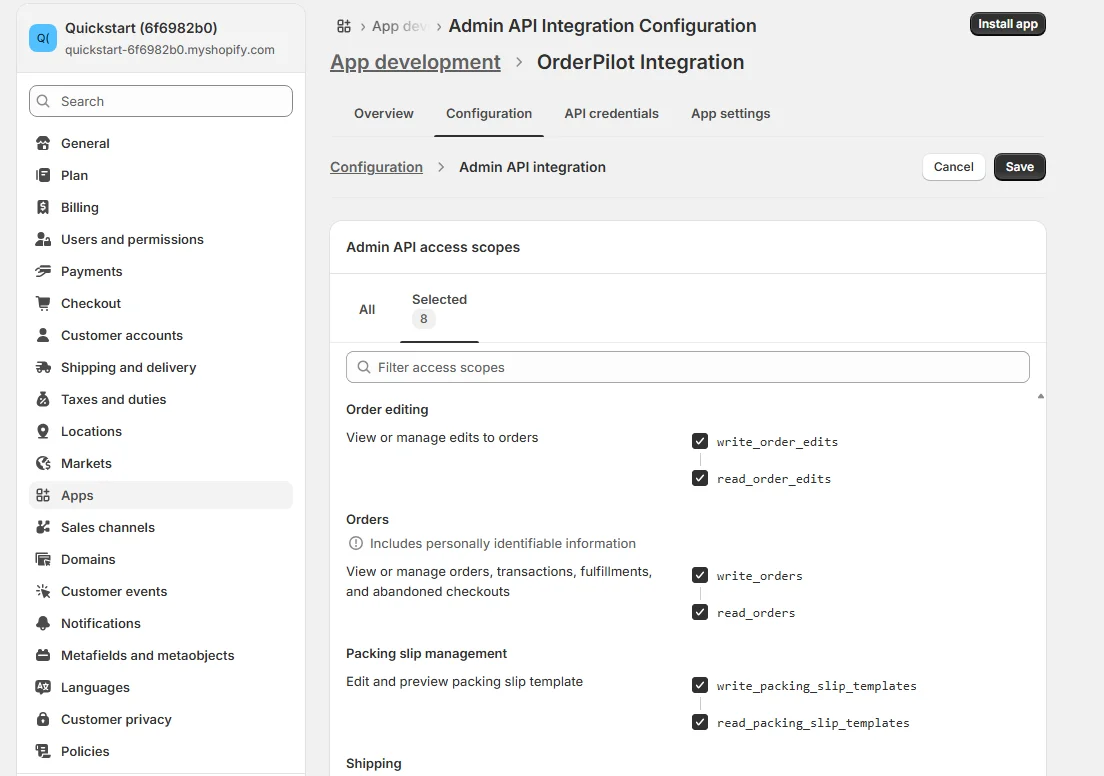 Configuration Admin API integration
Step 4: Install the App
Once permissions are set:
- Click Install app
- Approve installation
Tip
This generates your Admin API Access Token.
Step 5: Get Your API Credentials
- Admin API Access Token
- API Key & API Secret Key
- Store URL
Important
The Admin API Access Token is shown only once. Store it securely.
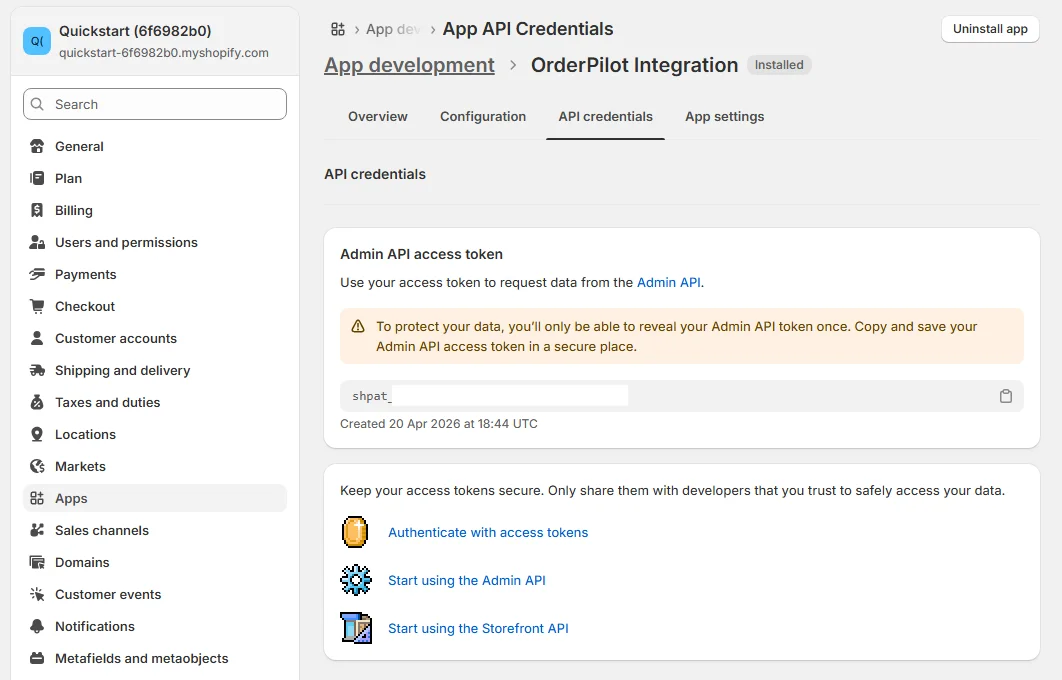 Admin API Access Token
Step 6: Integrate with OrdersPilot
- Login to OrdersPilot Dashboard
- Go to Sidebar → Brands
- Click on Add Brand button
- Enter your store URL (e.g., yourstore.myshopify.com)
- Enter your Admin API Access Token
- Fill other details
- Click on Save
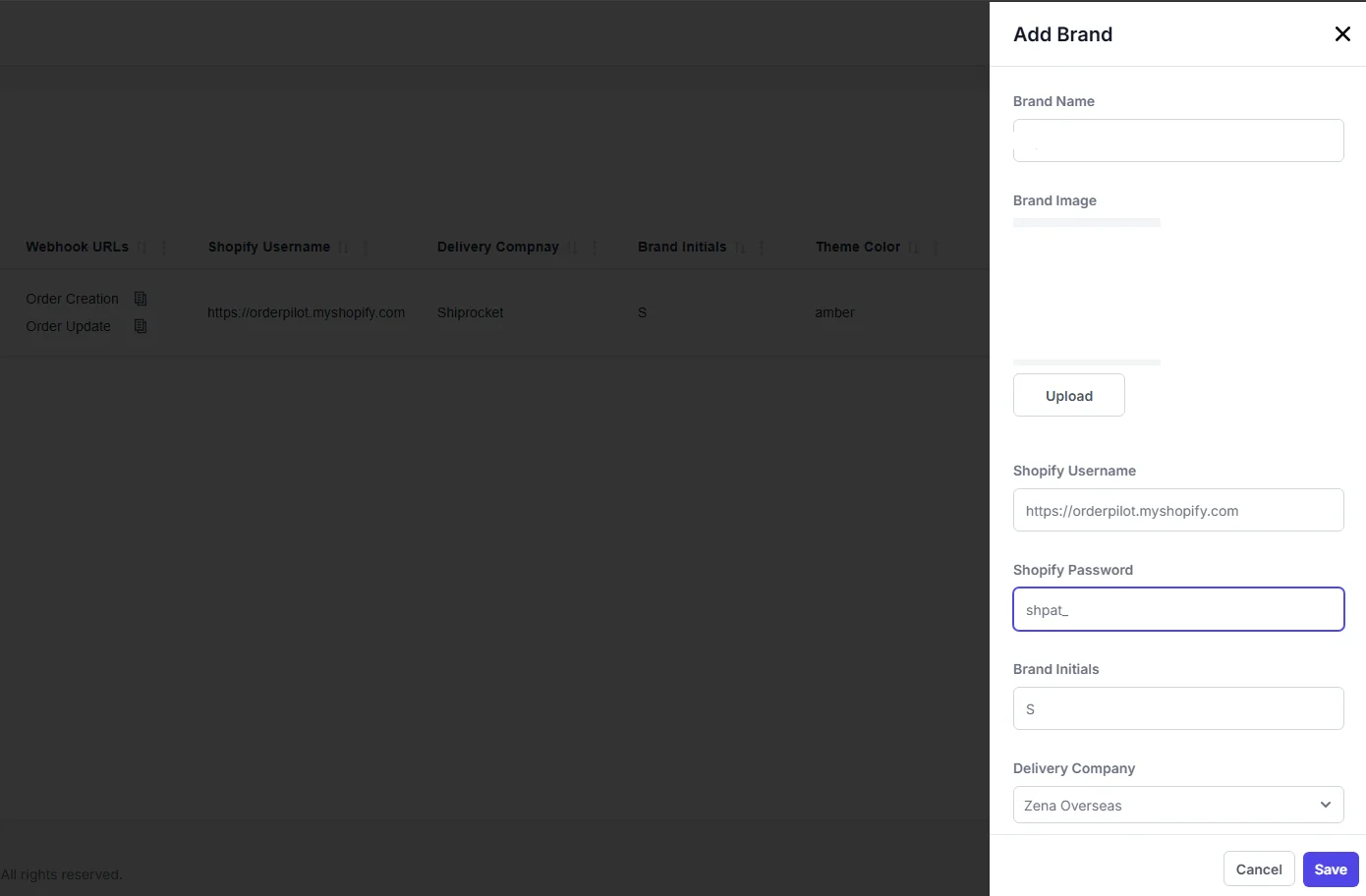 Add Brand
Done 🎉
Now you can sync orders from your Shopify store to OrdersPilot after setuping webhook.
How to Setup Shopify Webhooks →
How to Use the Access Token
GET https://yourstore.myshopify.com/admin/api/2024-01/orders.json
Headers:
X-Shopify-Access-Token: YOUR_ACCESS_TOKEN
How OrdersPilot Uses This
- 📦 Syncs orders across multiple stores
- 🔄 Automatically updates inventory in real-time
- 🚫 Prevents overselling
- 🚚 Manages fulfillment workflows
Security Best Practices
- Never expose the access token on frontend
- Store tokens encrypted
- Use environment variables
- Rotate tokens if compromised
Final Thoughts
Shopify custom apps are the backbone of any serious Shopify SaaS integration. Once set up correctly, they unlock powerful automation capabilities.
Frequently Asked Questions
QWhat is a Shopify Custom App?
A Shopify Custom App is a private application built specifically for your store to connect with external platforms like OrdersPilot using the Admin API without requiring a public app store listing.
QHow do I get my Admin API Access Token?
You can generate the token by going to Settings > App and sales channels > Develop apps > Create an app, and then configuring the Admin API integration scopes.
QIs it safe to share my API keys?
You should never share your API Secret Key or Access Token publicly. Only provide them to trusted platforms like OrdersPilot through their secure integration dashboard.
Author
Tech Team
Deeply passionate about optimizing e-commerce logistics and building systems that help D2C founders regain control of their operations.
Enjoyed this article?
If you found this helpful, share it with your network and help other Shopify founders scale their operations.
Recommended Articles
Continue your journey with more insights from our team.